Lightroom Classic plugin · Mac only
Lightroom Classic to Apple Photos.
In a few clicks.
Publish a collection straight to an Apple Photos album, without exporting and importing by hand. With iCloud Photos enabled, see it on iPhone and iPad too.
£49 including UK VAT, before currency conversion. One payment, no plugin subscription.
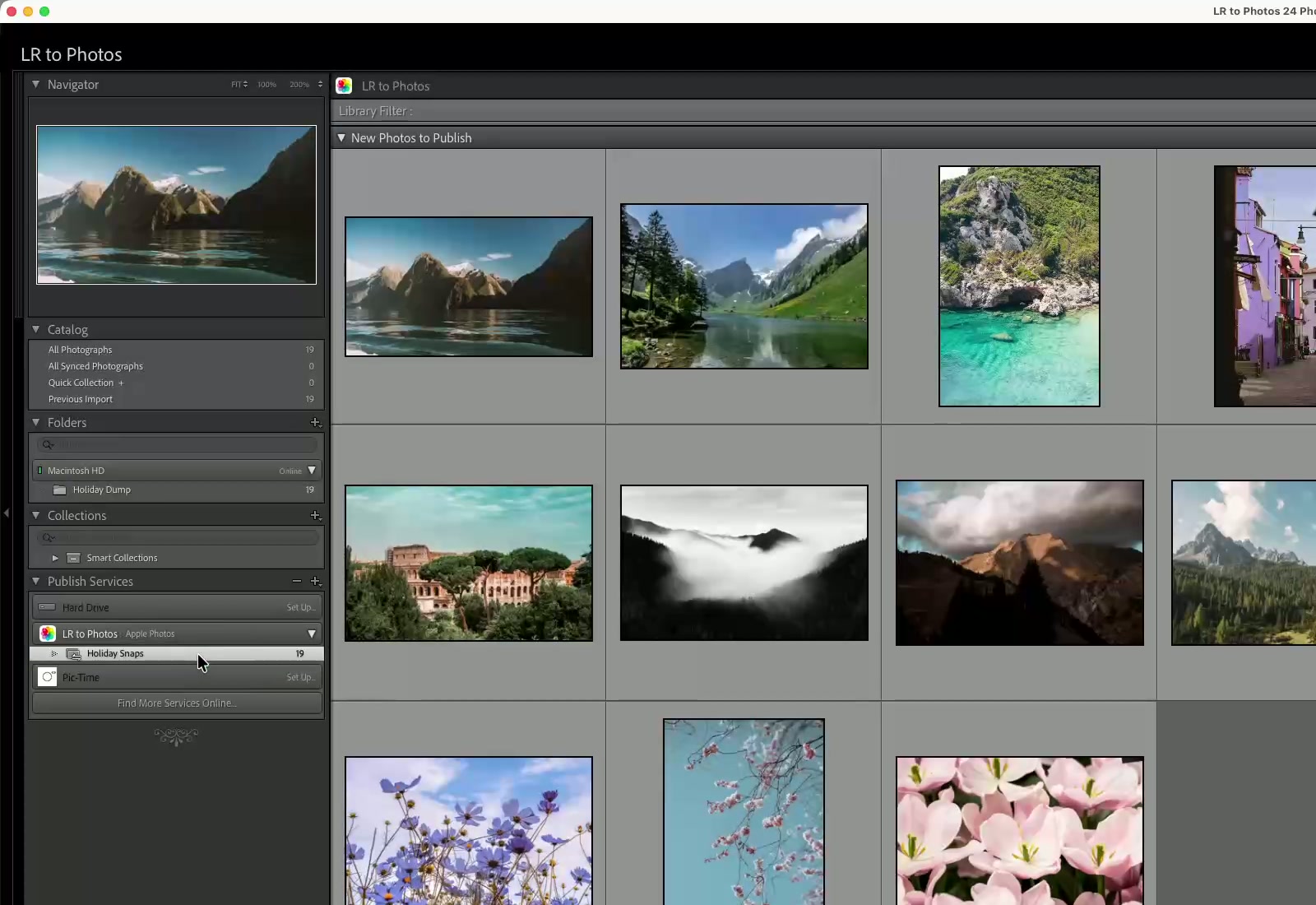
A real Lightroom Classic → Apple Photos workflow.
Albums organised.
Later edits handled.
Set up your destination once. Publish new photos and later edits when you’re ready.
Albums and folders
Create a matching album for each collection, or send everything to one album. Choose a Photos folder for those albums in the plugin settings.
A place for previous edits
Publish your updated edit. The optional Out of date album gathers the previous copy for review. It stays in Photos until you remove it.
Your five-star photos, collected
Use ratings, keywords or other rules to gather photos in a published Smart Collection. Click Publish to send the selection to Photos.
Get LR to Photos.
Your original files stay where they are. LR to Photos exports your edits into Apple Photos.
Check before buying: Mac + Lightroom Classic required. Tested baseline: macOS Sequoia and Lightroom Classic 14. Ask about your setup.
£49
including UK VAT
£40.83 before tax; £49 including 20% UK VAT, before currency conversion. Gumroad shows your final currency and total at checkout.
Continue to Gumroad checkout- Plugin for Lightroom Classic on Mac
- Use on Macs you personally own
- All updates within version 1.x
- Email support
Checkout and download through Gumroad. Install the plugin in Lightroom Classic, then connect Apple Photos. Follow the setup guide.
If it does not work, contact us within 14 days. We will help you resolve it, or refund your purchase if we cannot get it running on a supported setup.
A few useful answers.
Something else on your mind? Email support.
Will it work with my Lightroom?
You need Lightroom Classic on a Mac. It does not work with the cloud-based Lightroom app, Lightroom on iPad, or Windows. The published compatibility baseline is macOS Sequoia and Lightroom Classic 14. If you use another version, email us before buying.
What export options can I choose?
Set image size, quality and other Lightroom export options. Video publishing is supported too. You can add catalogue and album keywords, or leave them off. Enable the option to skip unchanged rendered files when publishing again. See the setup guide.
Is this automatic, two-way sync?
No. You choose photos in a Lightroom Classic published collection and click Publish. Changes made in Apple Photos do not come back to Lightroom.
What happens when I edit a published photo?
Publish again to send your updated edit. The optional Out of date album gathers the previous copy for review; it stays in Photos until you remove it. Unchanged rendered files can be skipped when that option is enabled.
Will my photos appear on my iPhone?
Yes, when you publish into your Mac’s System Photo Library with iCloud Photos enabled, and use iCloud Photos on your iPhone with the same Apple Account. Apple handles the upload; timing depends on your connection, storage and sync status.
Are my Lightroom originals changed?
The plugin exports your edits to Apple Photos. Your Lightroom originals stay in their existing location. Keep normal backups of your catalogue and photo libraries.
What if I need help?
Email hello@lrtophotos.com. If the plugin does not work, contact us within 14 days of purchase. We will help you get it running, or refund it if we cannot resolve the problem on a supported configuration. Read the terms.